How to use SSH/SFTP
With SFTP (Secure File Transfer Protocol) you transfer files securely (encrypted) between your computer and the STRATO webspace. SSH (Secure Shell) provides an encrypted terminal connection that lets you run commands on the web server. In your STRATO customer login you can create separate accesses for each project, set the start directory, and manage passwords. Below are the steps from setup to using FileZilla (SFTP) and PuTTY (SSH).
What are SFTP and SSH?
- SFTP: File transfer protocol that uses the SSH tunnel. Everything is encrypted over port 22. Recommended over classic FTP.
- SSH: Encrypted remote connection to the server’s shell (terminal). Allows you to run commands within your webspace.
- SFTP + SSH: One access that allows both SFTP and SSH. If you only need file transfers, SFTP is enough.
Access SFTP/SSH in the STRATO customer login
- Log in to the STRATO customer login.
- Navigation path: «Databases and Web space» → «SFTP & SSH».
- On the overview page you’ll see:
- List of existing accesses with user name and start folder.
- Top right the personalized server name and port (22).
- A «+ Create new» button to create new accesses.
- For each access, a three‑dot menu for details/changes.
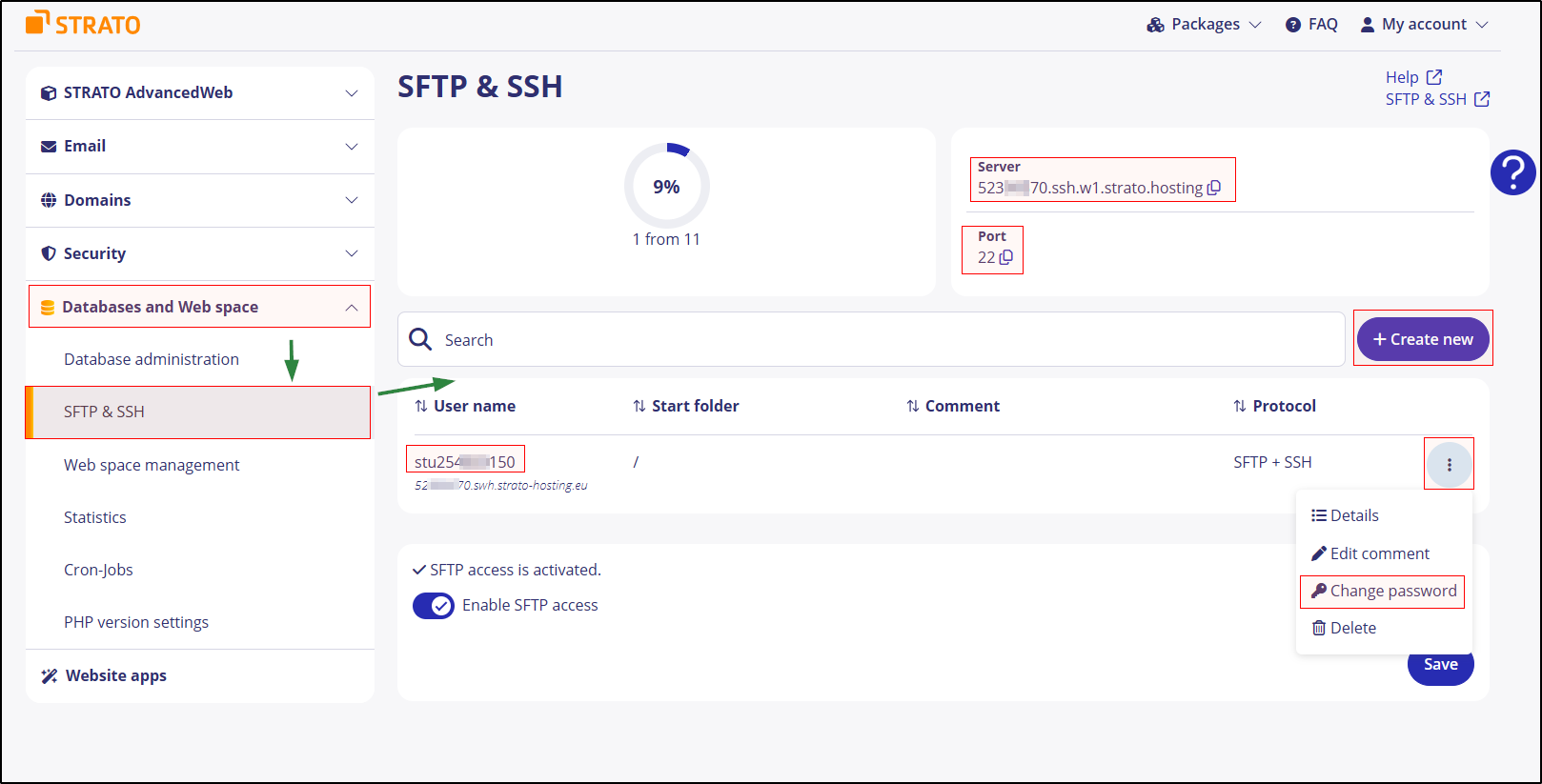
Create an SFTP or SFTP+SSH access
- Click «+ Create new».
- Optional: Add a comment (e.g., “for WordPress uploads”).
- Set a secure password.
- Choose the type:
- SFTP (recommended) or
- SFTP + SSH (if you also need terminal access).
- Choose a root/start directory. This access only sees this directory and its subfolders.
- «Save». The username is generated automatically.
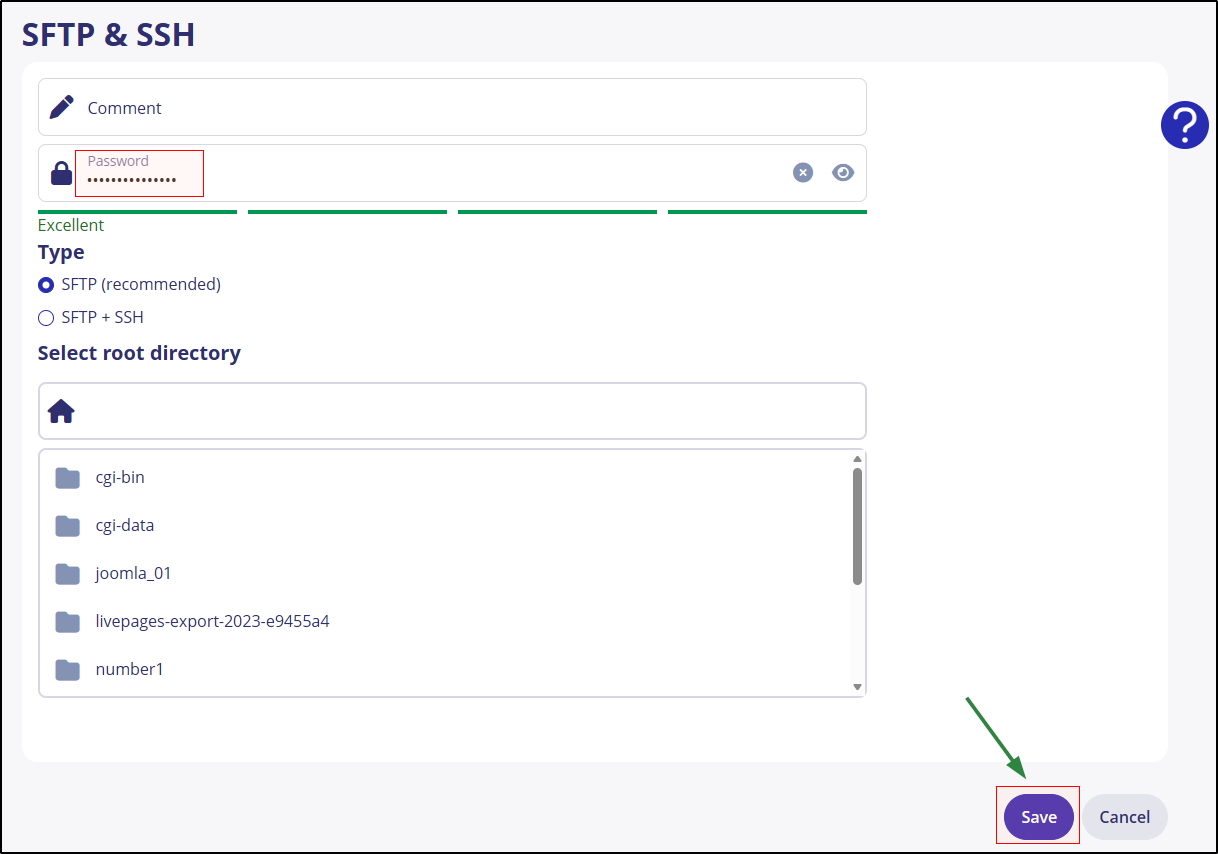
Note: The username is system‑assigned and is shown in the list.
Find server and login details
- In the right‑hand box of the overview you’ll see:
- Server: personalized hostname (example pattern: 501****03.ssh.w*.strato.hosting).
- Port: 22.
- In the access list you’ll find:
- The auto‑generated user name (e.g., su******).
- The start folder.
You need these three items (server, username, password) plus port 22 for SFTP. For SSH the same server and user details apply.
Connect via SFTP (example: FileZilla)
Preparation: Install the FileZilla Client from filezilla-project.org.
A. Save once in the Site Manager
- «File» → «Site Manager» → «New Site».
- Protocol: SFTP – SSH File Transfer Protocol.
- Server: personalized server name from the STRATO customer login.
- Port: 22.
- Logon Type: Normal.
- User: the generated username (e.g., su******).
- Password: the password you set when creating the access.
- Connect. On first connect, confirm the server’s fingerprint (Host Key) so FileZilla trusts the destination.
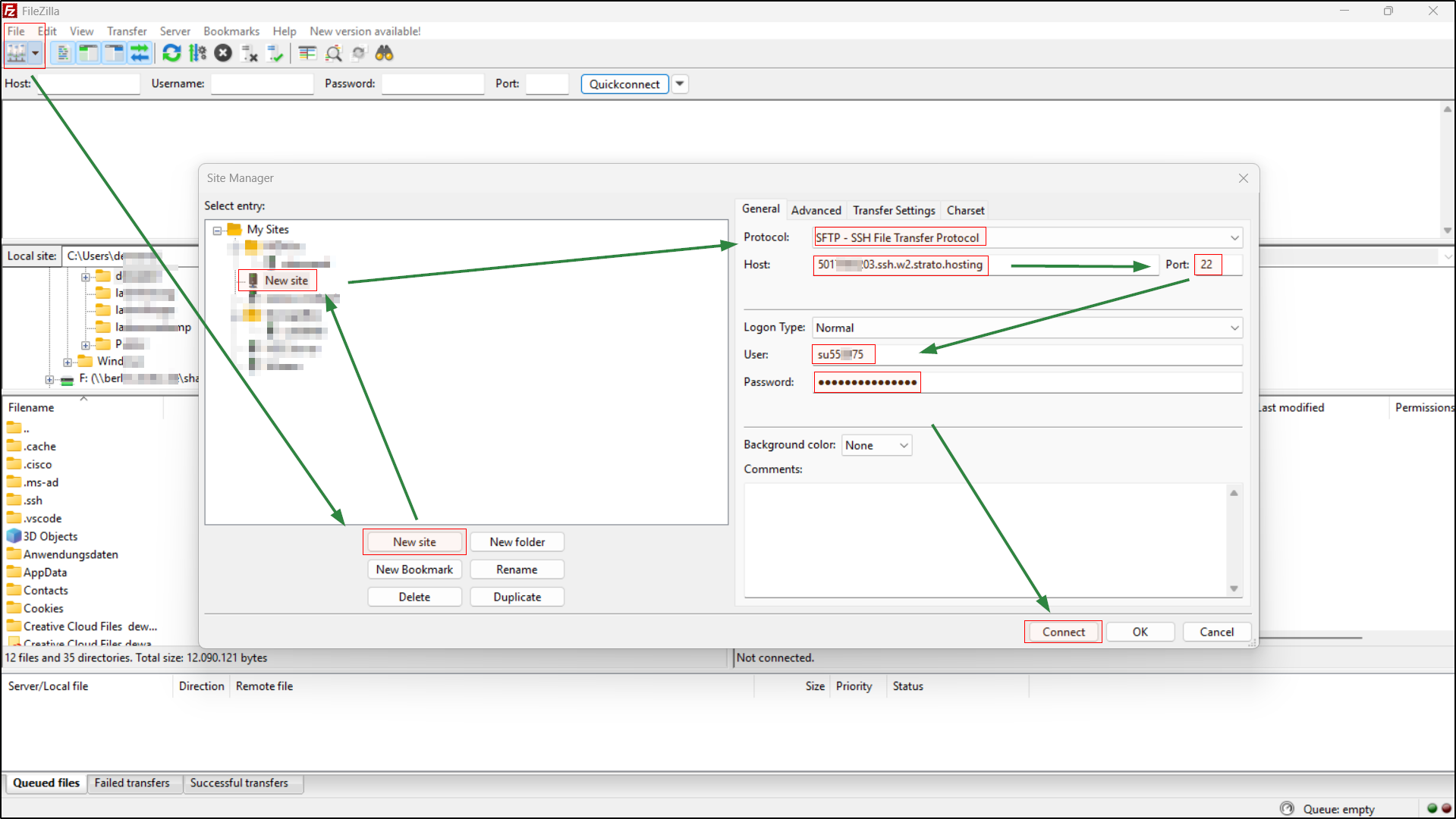
B. Upload files
- Left side: your local files/folders.
- Right side: your webspace starting at the chosen start directory.
- Drag and drop files/folders from left to right.
- Make sure you upload website files into the correct directory (e.g., your project’s documented webroot).
Tip for connection issues:
- Check username/password, server name, and port 22.
- Ensure you selected SFTP as the protocol (not FTP or FTPS).
- Verify the access is active in the STRATO overview and has the correct start directory.
Show hidden files (e.g., .htaccess)
Some important configuration files start with a dot and are hidden by default.
In FileZilla:
- Menu «Server» → enable «Force showing hidden files».
- If still hidden: «View» → «Directory listing filters» → Disable the «Configuration files» filter or uncheck it.
Over SFTP, dotfiles are then visible and editable.
Manage, change, delete SFTP accesses
In the list of your SFTP/SSH accesses you’ll find a three‑dot menu to the right of each entry. There you can:
- View Details
- Edit the comment
- Change the password
- Delete the access
Notes:
- Forgot the password? Use «Change password» and update the saved password in FileZilla.
- Adjust start directory: If needed, create a new access with the desired start directory.
- Security: Use separate accesses for different purposes, each with its own start directory and password.
Use SSH (example: PuTTY)
Requirement: When creating the access, choose the type «SFTP + SSH».
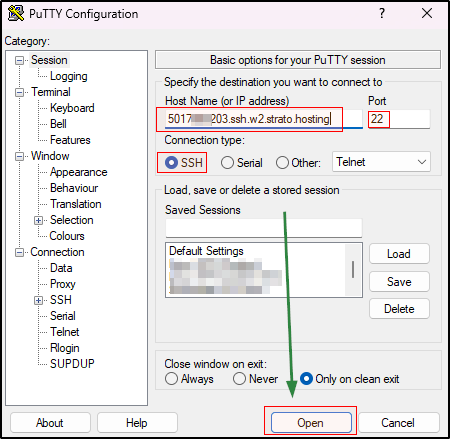
- Download and start PuTTY.
- Host Name (or IP address): personalized server name from the STRATO customer login.
- Port: 22. Connection type: SSH.
- Optional: Save the session under Saved Sessions → Save.
- Click Open.
- The first time: Confirm the host key dialog (trusted server).
- Login as: enter your generated username (e.g., su******).
- Enter your password.
Note: In PuTTY nothing is shown while typing the password — that’s normal.
You are now in the terminal in the configured start directory.
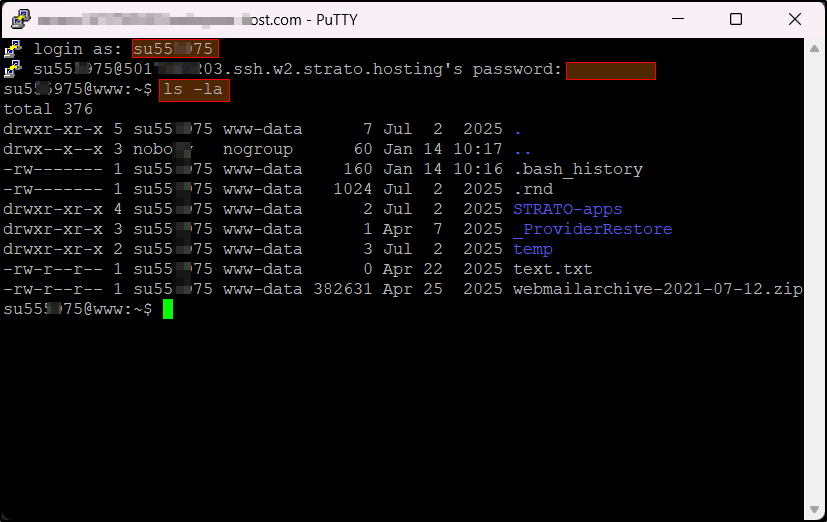
Basic commands:
ls
Lists files/folders. With -la you also see hidden files (e.g., .htaccess).
Example: ls -la
cd
Changes directory.
Examples: cd public, cd .. (one folder up), cd ~ (to home)
pwd
Shows the current path.
Example: pwd
less
View long files page by page; q quits.
Examples: less error.log, less -N access.log
grep
Searches for text patterns in files/folders.
Examples: grep -n "Fatal" error.log, grep -R "cache" .
cp
Copies files/folders. With -r recursively.
Examples: cp index.php index.bak, cp -r img/ img_backup/
mv
Moves or renames files/folders.
Examples: mv index.bak index.php, mv uploads/* media/
rm
Deletes files/folders. With -r recursively, with -i ask before.
Examples: rm datei.tmp, rm -ri alter_ordner
Caution: rm -rf deletes without asking — use only if you’re absolutely sure.
mkdir
Creates folders. With -p also nested structures.
Examples: mkdir assets, mkdir -p app/cache/tmp
chmod
Changes file permissions (access rights).
Examples: chmod 644 .htaccess, chmod -R 755 public_html
Exit: type exit or close the window.
FAQs and tips
- Difference SFTP vs. FTPS? SFTP runs over SSH (port 22). FTPS is FTP with TLS over ports 21/990. For STRATO accesses use the SFTP details shown in the overview.
- Separate multiple projects? Create a separate access per project with a suitable start directory.
- Permission/write errors? Check you’re in the correct start directory. If needed, adjust server‑side permissions or contact support.
- Increase security:
- Use long, unique passwords.
- Delete accesses you no longer need.