How can I use an external email client with my STRATO email address?
To be able to access your STRATO email address with an email program, you first need to configure that program for the email address you want to use.
General configuration
To configure your email program, you only need the email server addresses, the user name and the password for the email address.
Please use the following details when configuring your email program:
| STRATO email login details | |
| Username / account: | Your full email address |
| Password: | Your email password |
| STRATO email servers | |
| Incoming mail (POP3): | pop3.strato.de |
| Incoming mail (IMAP): | imap.strato.de |
| Outgoing mail (SMTP): | smtp.strato.de |
| Exchange server: | webmail.strato.de |
| STRATO email ports | |
| POP3 (SSL/TLS): | 995 |
| IMAP (SSL/TLS): | 993 |
| SMTP (SSL/TLS): | 465 |
| Security & authentication (external email programs) | |
| Connection security: | SSL/TLS |
| Authentication method: | Password, normal / standard |
General setup of the “Microsoft Outlook” email program
In Microsoft Outlook, the basic setup is done via Account settings or + Add account.
In the following pop-up window, select Manually configure server settings or additional server types and go through the setup wizard. You will find the required server information in this article in the General configuration section.
Further help:
Microsoft: POP, IMAP and SMTP settings for Outlook.com
General setup of the “Mozilla Thunderbird” email program
Setting up an email address in Mozilla Thunderbird is largely automated. All you need is your email address and the password you have set for it.
To create a new account, click New account / Email account.
Please go through the setup wizard. You will find the required server information in this article in the General configuration section.
General setup of an Android email app
Please note that we cannot provide support for the large number of free and paid email apps available. For details, please refer to the documentation of the respective app provider.
To use an email account with your Android smartphone, you first need to set up the email account on the device. Below we describe the general setup using the Gmail app as an example.
When you open the Gmail app on your smartphone for the first time, you are taken directly to the setup wizard. If you have already created an account in the app, first tap the three‑line menu icon (hamburger menu) and then select Settings.
Please go through the setup wizard. You will find the required server information in this article in the General configuration section.
General setup of an Apple email program
Please note that we cannot provide support for the large number of free and paid email apps available. For details, please refer to the documentation of the respective app provider.
To use an email account with your Apple device, you first need to set up the email account on the device. Below we describe the general setup using the Apple Mail program.
If you open Apple Mail on your device for the first time, you are taken directly to the setup wizard. If you have already created an account, go to Settings on your iOS device (e.g. iPhone).
Under Apps → Mail → Mail Accounts you can create a new mailbox via Add account.
In the next window, select Other → Enter email address (or tap the link below) → Add Mail Account… → Mail account and then go through the setup wizard.
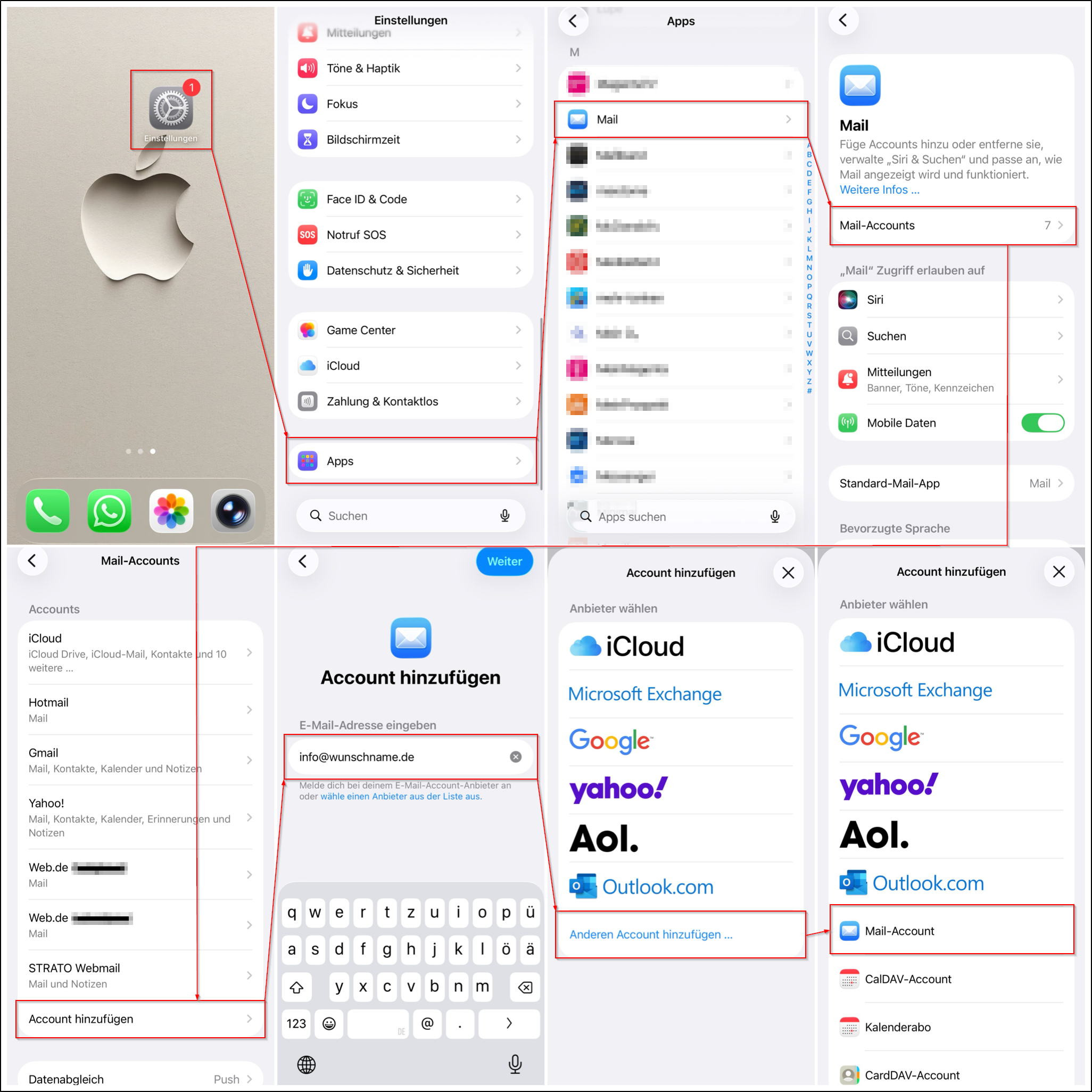
You will find the required server information in this article in the General configuration section.
Further help:
Receiving and sending emails with iPhone / iPad
Apple Mail: Change settings in the “Server settings” section in Mail on Mac