The STRATO Customer login
With the STRATO customer login you manage all packages under your customer number centrally. Technical settings are clearly separated from contract data – so you can make changes faster and more clearly. Changes to master data such as address or payment details apply to all packages under your customer number.
Your benefits:
- One login for all contract management functions
- Access to all your packages and package‑specific settings (e.g. email, databases)
- Change master data centrally and view/download invoices
- Delegate technical administration without exposing contract data
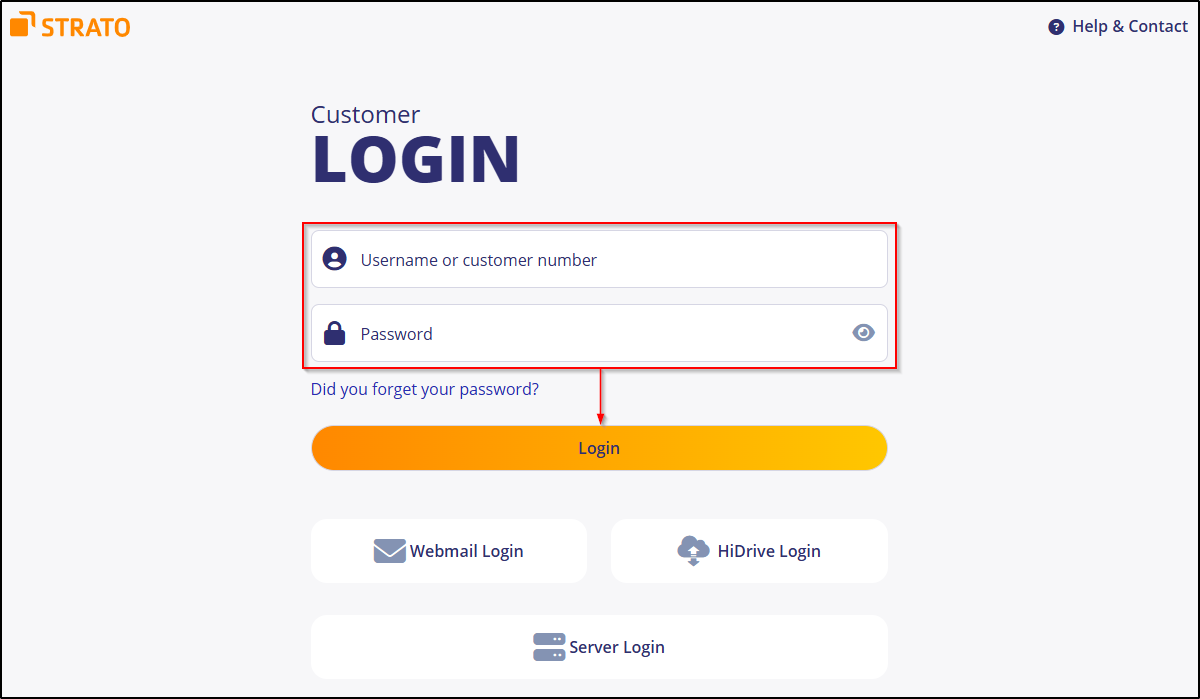
Login
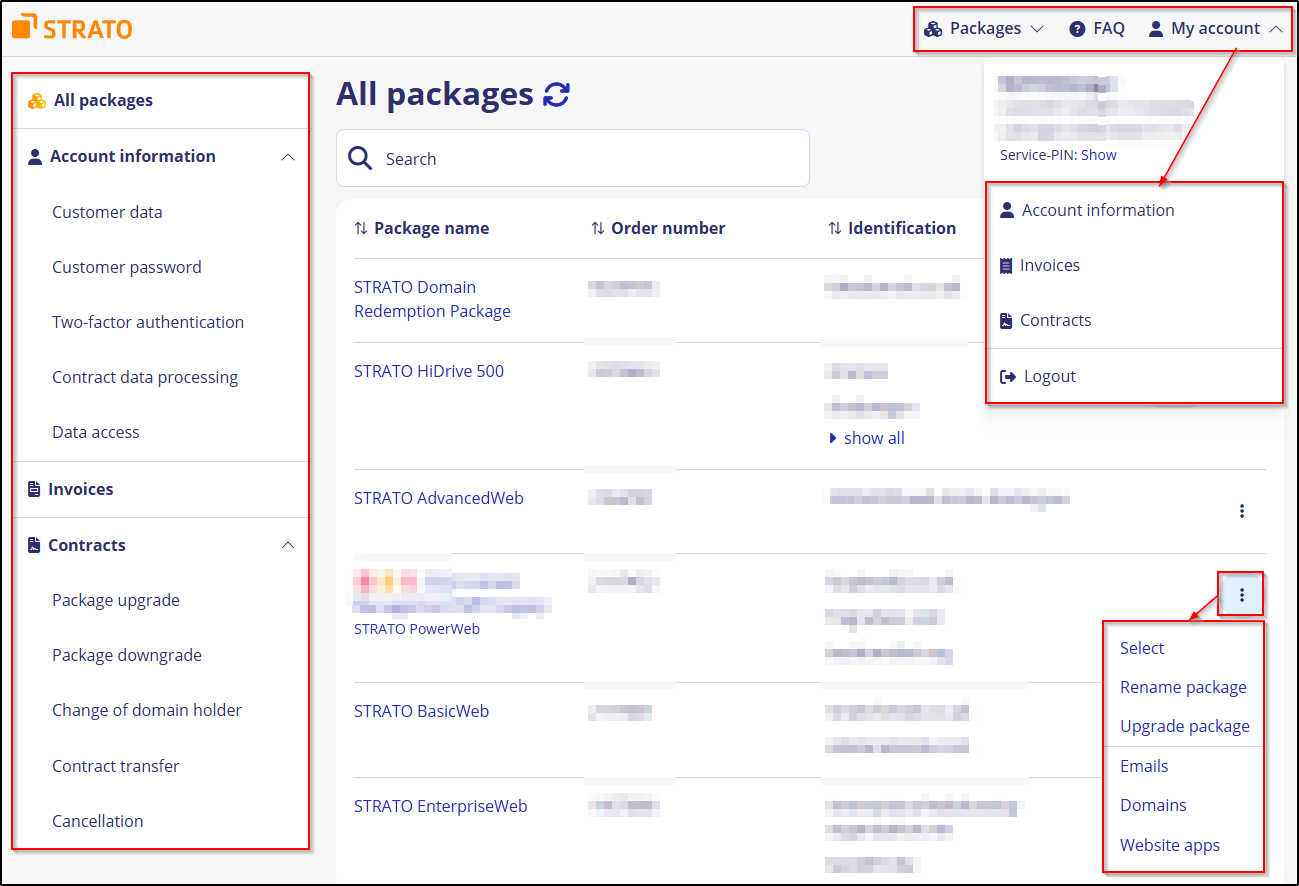
Navigation at a glance
Top bar (main navigation)
Top right you’ll find:
- Packages – quick switch to your packages
- FAQ – support, FAQs and contact
- My account – profile/account functions and Logout
Left sidebar (main menu)
- All packages – central list of all your packages
- Account information – Customer data, Customer password, Two-factor authentication, Contract data processing, Data access
- Invoices – retrieve invoices
- Contracts – tariff changes, cancellations, forms
Manage Account information
Customer data
In Customer data you can change or update:
- Address details
- Phone numbers
- Contact email address
- Payment information/bank details
How to proceed:
- Click Account information > Customer data.
- Adjust the required fields.
- Confirm with Save.
Info
Forms for changing the contract holder (contract transfer) are available in this area or linked there. For legal reasons, this change cannot be completed fully online.
Customer password
Change your personal customer password.
- Open Account information > Customer password.
- Set a new password and confirm with Save.
Two‑factor authentication (2FA)
Protect your access with an extra security layer (e.g. an authenticator app).
- Go to Account information > Two-factor authentication.
- Follow the assistant (e.g. link your authenticator app).
- Finish by clicking Activate.
Contract data processing (DPA)
View, request or conclude data processing agreements and, if needed, retrieve sub‑processor information and logs.
- Click Account information > Contract data processing.
- Select the required agreement/application and follow the process.
Data access
Request a GDPR‑compliant overview of stored personal data.
- Open Account information > Data access.
- Start the request with Request or download existing reports.
View and download invoices
- All STRATO invoices linked to your customer number at a glance
- Download invoices as PDF
- For open items: repeat the direct debit
Steps:
- Click Invoices.
- Open the required invoice with Show or Download PDF.
- If necessary, choose Repeat direct debit.
Contracts (tariff changes, cancellations, applications)
In Contracts you manage your contract data and package states:
- Contract overview and terms
- Package upgrade/downgrade
- Cancellations of packages, domains or add‑ons
- Depending on the process, the required forms are provided online:
- Package upgrade
- Package downgrade
- Change of domain holder
- Contract transfer
- Cancellation
Only functions available for your package are shown.
FAQ and contact
Via FAQ (top right) you’ll find:
- Contact options for customer support
- Frequently asked questions and guides
- Ways to leave feedback
All packages (package overview)
- Search field Search for quick filtering
- Sortable columns (e.g. Package name, Order number, Identification)
- Context menu (three dots) ⋮ per package for further actions
Settings for individual packages
Open package details and actions
- Go to All packages.
- Select a package by clicking the package name – the detail view opens.
- For additional options use the context menu ⋮, for example:
- Select
- Rename package
- Upgrade package
- Emails
- Domains
- Website apps
- (Plus other package‑specific settings/management)
In the package list and package details you only see functions relevant to the specific package type (e.g. web space, databases, email).
Separate package login (delegation)
You can hand over technical maintenance to third parties without giving access to your contract data.
- In the relevant package, set a dedicated package password via Security > Password management > Package password.
- Login is then usually performed with the package’s domain name and the package password.
- This allows technical administration, but no contractual changes.
Create your own username for login
Instead of the customer number, you can use a personal username.
Set‑up:
- Log in with your customer number and customer password.
- Open Account information > Customer data.
- Go to the Username section.
- Enter your desired username and click Save.
- You’ll receive a confirmation. You can then log in with username + password.
The form shows which characters are allowed. If you enter invalid characters, you’ll see a notice.
Logout
- Click My account > Logout in the top right.